


USING SMART ONE IPTV
You will need to use the controller app named “Smart One IPTV” to proceed. You can get it for seven days for free. Then you can make a one-time fee of 10$ approximately and start using it.
- Download the Smart One Iptv app from the store
- Once you download the Smart IPTV app, launch it.
- Keep a note of MAC Address that you can see on the screen.
- Now visit this page.
- Navigate to the section named as “From m3u Playlist URL”. You need to enter the MAC address in here. You should also include your unique IPTV subscription URL (sent to you by email after your subscription) under the field called M3u.
- Now click on generate.
- Restart the app and you should see the channels.
USING IBO PLAYER
USING SET IPTV
USING HOT IPTV
USING Net IPTV
The procedure is nearly the same as Smart One IPTV.
Enable Unknown Sources:
- Go to Settings > My Fire TV > Developer Options and turn on Apps from Unknown Sources.
Install Downloader App:
- Search for Downloader in the Firestick search bar and install it.
Download IPTV Smarters:
- Open Downloader, enter this URL, and click Go to download and install the app.
- For more details, visit this website. Or Code Downloader:439873
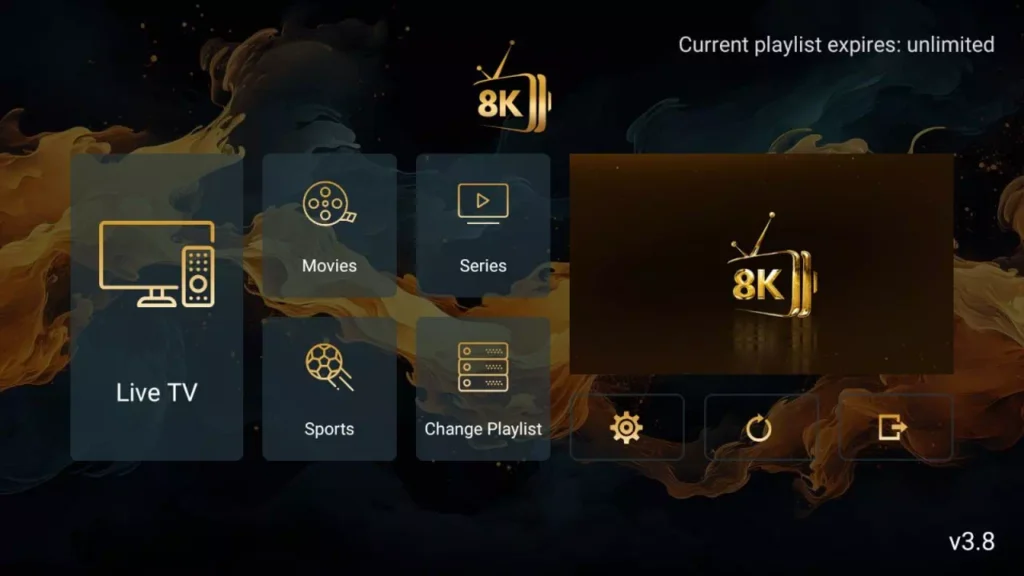
Open 8k iptv:
- Launch the app and enter your IPTV subscription details to start streaming.
USING TiviMate
USING XCIPTV Player
USING GSE Smart IPTV
USING Perfect Player IPTV
The procedure is nearly the same as IPTV Smarters.
USING IPTV SMARTERS PRO
- This app is our number one recommendation.
- You can download it from the store.
- If you don’t find it in the store please download it from here.
- Once installed, select login via Xtream codes API (XC API), and then login using the username, password and url we sent you.
USING CLOUD STREAM IPTV PLAYER
- Go to App Store and download Cloud Stream IPTV Player.
- Open the App.
- On the upper left corner click on the “dashes” icon.
- In the down left corner click on the “+” sign
- Click on load m3u file
- Click on load m3u from web
- Add the IPTV subscription URL that we sent you in your Email.
USING IPLAY TV
- Go to App Store and download iPlay TV.
- Upload the IPTV subscription URL link that we sent you.
- Now you will be able to see the playlist.
USING GSE SMART IPTV PRO
- Go to App Store and download GSE SMART IPTV pro.
- Accept the EULA Rule.
- Select settings on the left hand corner.
- Locate the menu called “Remote Playlists”
- Select the button named as “+”
- Enter your IPTV subscription URL via selecting add m3u url.
- Download the app: Go to the Google Play Store, search for "IPTV Smarters Pro", and tap Install.
- Or you can downlod it from here
- Open the app: Once installed, open IPTV Smarters Pro.
- Add your IPTV details: Choose "Add New User" and enter the M3U URL or Xtream Codes API details we sent to you.
- Start streaming: After setup, you can access live TV, movies, and series.
USING TiviMate
USING XCIPTV Player
USING GSE Smart IPTV
USING Perfect Player IPTV
The procedure is nearly the same as IPTV Smarters.
USING IPTV SMARTERS PRO
- This app is our number one recommendation.
- You can download it from here
- Just login using the xtream code sent to you by email and you’re good to go.


Using MYIPTV Player
- From the windows store download MyIPTVPlayer.
- Go to Settings, then select add new playlist.
- In the Remote Channel List section enter any name as the list name, and paste the url we provided by email in the url field.
- Go back to Settings and select the channel playlist you just added.
- Go to the channels section and enjoy.
- Download the m3u link we sent by email.
- Open the download file using Perfect player.
Connect your MAG Device to internet then follow the below steps.
- Navigate to Settings, System Settings, Servers and Portals.
- Set IPTV Beast as Portal 1
- Enter the URL in your email to Portal 1 URL section.
- Leave the name of Portal 2 to empty.
- Leave the URL of portal 2 to empty.
- Save.
- Restart.
- Now you will be able to see the list of channels.
USING KODI KRYOPTON 17
- Launch Kodi app
- In the left menu click on TV
- Click on Add-on browser.
- Click on PVR IPTV Simple Client
- Click on Configure
- Select General
- Enter the IPTV subscription URL.
- Wait for some time until you get the notifications loaded.
This tutorial will help you to get a better understanding on how to watch IPTV on your STB Emulator. The following Set-top boxes are compatible with it.‘STB Emulator’ can emulate the following IPTV set-top boxes.
MAG 200 |
MAG 245 |
MAG 250 |
MAG 260 |
MAG 270 |
MAG 275 |
Aura HD |
- As the first thing, you should visit Google Play Store and download STB Emulator.
- You need to install STB Emulator and open it. You can now see a section called Mac Address.
- You need to click on “Settings”, which is located near top right hand corner.
- Next you need to visit Profiles.
- You should now click on Test Portal. Then you can “Add Profile”.
- Click on the “STB Model”.
- Select your STB Model.
- Go to Portal Settings.
- Now you can enter the Portal Email, which should have come to your email inbox.
- Now you need to select on Screen Resolution.
- For the screen resolution, pick 1280 x 720
- Exist the app and restart it.
- You can now see the list of channels.
- You need to visit Enigma 2 to get the address
You can navigate to Settings, Setup, System Network Device Adapter Settings. Then you can copy the IP address.
- Come back to your PC and download software called Putty.
- You should now open PUTTY and follow the below steps.
- Enter the IP address that you have copied and Port as 23. Connection type should be Telnet. You can now click on Open.
- The default password should be set to root.
- You will need to copy the URL line.
- Use the right mouse button and then enter.
- Type reboot on the screen and enter. This will restart.
Here are the setup instructions for Openbox
- Open up an Internet browser.
- Now you need to enter the M3U URL on it.
- You will be asked to save a file.
- Click on Save as and add any name.
- Now you can copy the file to a USB flash drive. Then you need to connect the USB flash drive to Openbox.
- Now you need to take the remote controller and follow these steps.
- Go to menu
- Go to Network local settings
- Go to Network App
- Go to IPTV Palace
- Press on Yellow Button to read from the USB drive.
- Now you can see the command saying success on Openbox.
If you still have any issues, simply restart Wi-Fi router and Openbox
